
Router Guide
UPnP (Universal Plug and Play) Security Audit and Risk Analysis
Learn what UPnP (Universal Plug and Play) is, how it works, and why keeping UPnP enabled on your router can create severe security risks. Check out its security risks, impact on online gaming, and safer alternative solutions to keep your network secure.
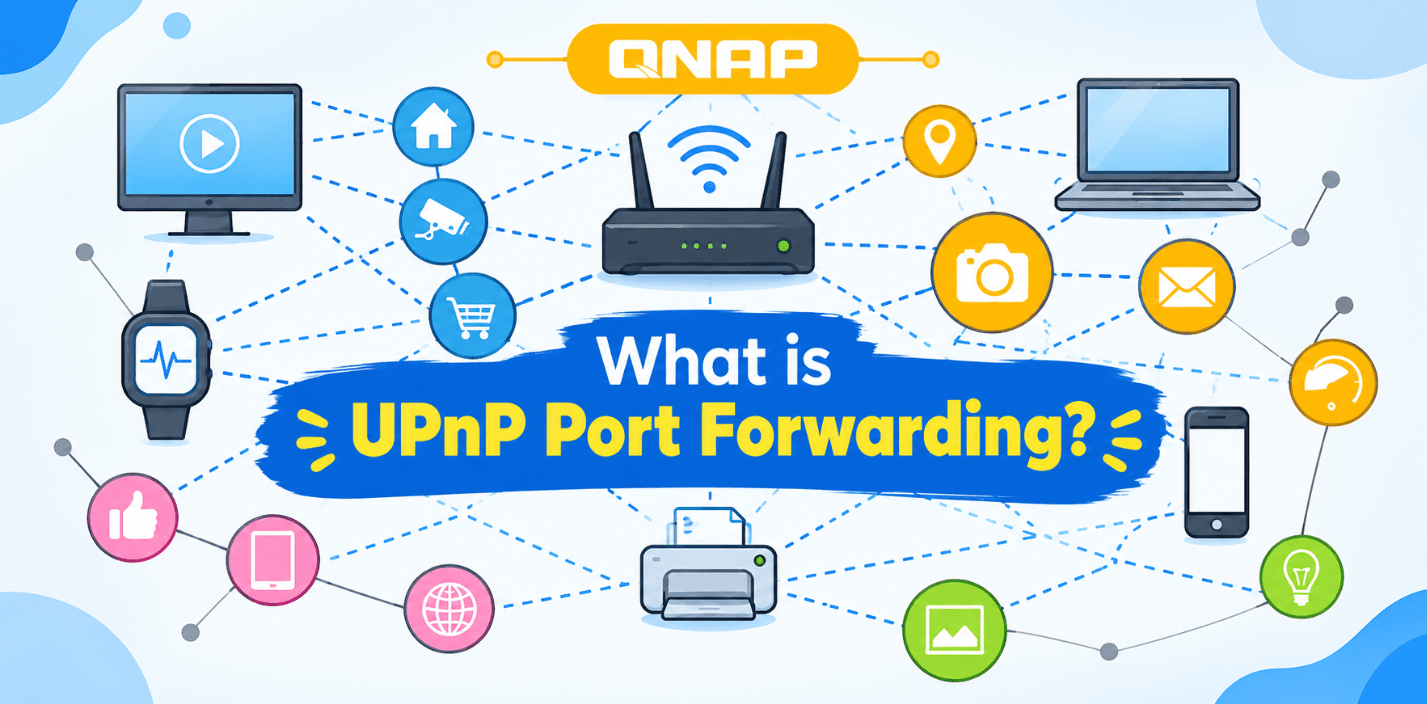
Universal Plug and Play (UPnP) is a set of network protocols or a framework that allows various networking devices (such as PCs, game consoles, IP cameras, and media servers) on the same Local Area Network (LAN) to auto-discover each other and establish automatic communication without manual network configuration. It is primarily built upon the Zero-Configuration Networking (Zeroconf) architecture.
How does UPnP work in a home network?
UPnP automatically performs port opening through the network's internal protocol stack:
- Discovery (SSDP): Devices use the Simple Service Discovery Protocol (SSDP) to send multicast packets to UDP Port 1900, discovering the router and other nodes.
- Description: The device collects the XML Control URL or description file from the router to learn its capabilities.
- Control (SOAP): To use services, the device sends Simple Object Access Protocol (SOAP) and HTTP over XML messages to request injecting or configuring specific Port Forwarding Rules in the router's NAT (Network Address Translation) firewall.
- Data Transfer: The router immediately updates its NAT mapping table, opens the specified inbound port, and routes incoming traffic to the private IP of that internal device.
Why do router manufacturers keep UPnP enabled by default?
Manufacturers keep UPnP enabled by default to ensure an out-of-the-box plug-and-play service aimed at simplifying the User Experience (UX). As a result, ordinary users are spared from technical complexities like logging into the router admin panel to manually configure Static IP Binding or Manual Port Forwarding.
Where are UPnP settings located in the router admin panel?
Typically, by logging into the router's Web GUI admin dashboard, UPnP control options can be found under Advanced Settings, NAT Forwarding, WAN Configuration, or the Network / Services tabs.
How to find UPnP settings on a TP-Link router
- Log in to the router admin panel by typing 192.168.0.1 or tplinkwifi.net in your browser.
- Click on the Advanced tab and go to Network / Forwarding or NAT Forwarding from the left sidebar.
- Click on the UPnP sub-menu located below to view the UPnP Enable/Disable toggle and the active UPnP Port Forwarding Table.
How to find UPnP settings on a Netgear router
- Visit routerlogin.net or 192.168.1.1 and enter your username and password.
- Go to the ADVANCED tab.
- Select the UPnP option from the Advanced Setup dropdown menu.
- Here you will find the Turn UPnP On checkbox and the UPnP Portmap Table.
How to find UPnP settings on an ASUS router
- Log in to router.asus.com or 192.168.50.1.
- Click on the WAN option under the Advanced Settings category.
- Select the Yes or No toggle for the Enable UPnP option located in the Basic Config section and click Apply.
Security Risks of Keeping UPnP Enabled
- Lack of Authentication & Authorization: The UPnP protocol lacks any user authentication or authorization mechanism. Any local malware can bypass the internal firewall.
- Malware Exploitation: If a Trojan or Ransomware infects an endpoint computer, it can send UPnP SOAP messages to open ports on the router and establish connections with an external Command & Control (C2) Server.
- WAN-side UPnP Vulnerabilities: In some faulty router firmwares, SSDP/SOAP protocol leaks allow UPnP requests to be accepted even from the external WAN interface, increasing the risk of Remote Code Execution (RCE) attacks.
Can UPnP expose your local devices to the internet?
Yes, absolutely. UPnP directly maps your internal device's private IP and service port to a specific port on the globally routable public IP. By disabling the firewall's Stateful Packet Inspection (SPI) guard and directly allowing global traffic, harmful automated port scanners on the internet (such as Shodan, Censys) can discover and hack your local devices (such as IP cameras or NAS drives).
How to check which devices are using UPnP?
- Router UPnP Portmap Table: Go to your router's UPnP section and check the UPnP Service List / Portmap Table. It lists the active device's IP Address, Protocol (TCP/UDP), Internal Port, and External Port.
- Network Scanners: You can run the nmap command on your local network to scan for SSDP services:
nmap -sU -p 1900 --script ssdp-discover 192.168.1.0/24
When is UPnP actually needed?
Generally, for routine internet browsing, video streaming, or sending emails, UPnP is completely unnecessary. UPnP only makes things easier when a server service in your home network background wants to instantly receive incoming dynamic inbound connections coming from outside (for example, P2P peer hosting or multi-player voice chat architectures in gaming consoles).
UPnP and Online Gaming
UPnP plays an important role in ensuring an Open NAT Type (NAT Type 1 / Open) during Peer-to-Peer (P2P) matchmaking and dynamic voice communication in online gaming. If UPnP is disabled, Strict NAT (NAT Type 3) or Moderate NAT issues may arise on game consoles, which can lead to latency or connection drop issues with other players in a lobby.
Safer Alternatives to UPnP
- Manual Static Port Forwarding: Reserve a fixed IP for a specific device using DHCP Reservation and manually forward only the required specific service ports (e.g., Port 22 for SSH) in the firewall.
- Port Triggering: An automated dynamic filtering strategy that opens ports temporarily based on outbound traffic.
- Overlay Mesh VPNs: Accessing devices via encrypted peer-to-peer tunnels without opening any router ports by using Tailscale, ZeroTier, or a WireGuard VPN Server.
- Cloudflare Tunnels (for Web Apps): Safely serving local web services over the internet without keeping any open inbound ports on your firewall.
How to securely disable UPnP?
- Log in to your router's admin panel.
- Go to Advanced / NAT Forwarding / WAN settings.
- Locate the UPnP option and select Disable or Off.
- Save the configuration and reboot the router if necessary.
- Add manual Port Forwarding rules for devices where inbound connections are essential.
How to test your network after disabling UPnP?
- UPnP Discovery Tool / ShieldsUP! Test: Go to the GRC ShieldsUP! (grc.com) portal and run a UPnP Exposure Test. If the test result shows SOLITARY CONFINEMENT or PASSED, it means UPnP is not responding on your WAN port.
- Port Scanner Validation: Use nmap to scan your router's external IP and check if any ports are unexpectedly open:
nmap -Pn -p 1900 <Your-Public-IP>
Recommended UPnP Security Configuration (Checklist)
- Disable UPnP on WAN/Router: Keep the global UPnP feature disabled on home and enterprise routers.
- Firmware Update: Always keep your router's firmware updated with the latest security patches.
- Strict Firewall Rules: Keep the router's SPI Firewall service turned on at all times.
- VLAN Segmentation: Segregate IoT (Internet of Things) devices and smart cameras into a separate Guest Network / VLAN.
- Use Secure Alternatives: Implement zero-trust tunnels or Mesh VPN protocols to access self-hosted servers.
Comments
No approved comments yet.
Leave a Comment