
Router Guide
How to Secure a New Home Router: 12 Essential Steps
A new router is not always secure out of the box. Follow 12 practical steps to protect your Wi-Fi network, connected devices, and personal information.
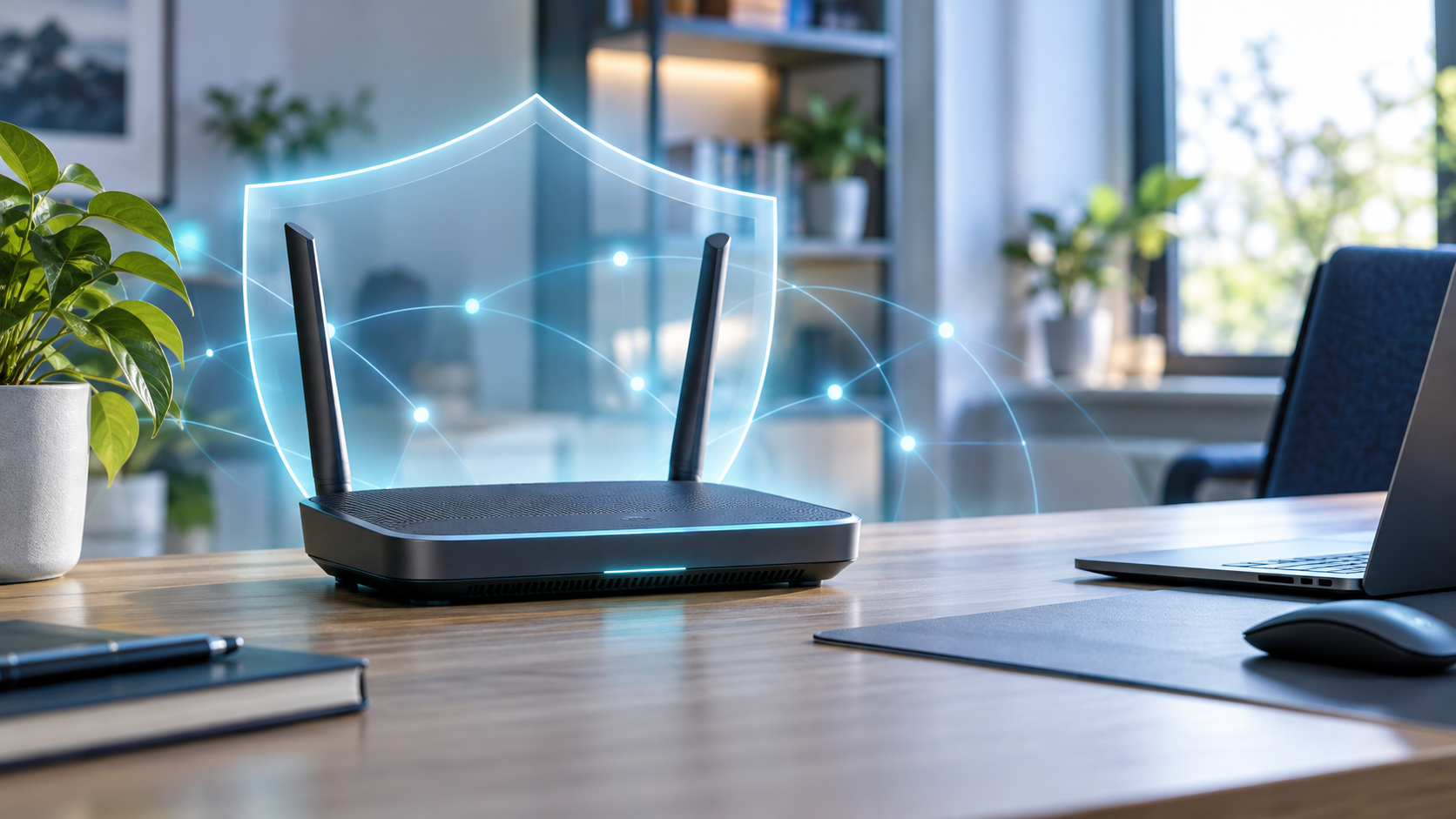
A new router can get your home online within minutes. That does not mean every security setting is ready.
Your router connects phones, computers, cameras, TVs, and smart devices to the internet. A weak router setting can therefore affect the entire home network.
Use this checklist after installing a new router. Menu names vary by manufacturer, but the basic security steps are similar.
1. Open the correct router settings page
Connect your phone or computer to the router’s Wi-Fi or Ethernet network. Then open the router manufacturer’s official app or local administration page.
The correct address is often printed on the router label or included in its setup guide. It may be an IP address, such as 192.168.1.1, or a local web address provided by the manufacturer.
Avoid router-login links from advertisements or unfamiliar websites. They could lead to misleading pages.
2. Change the router administrator password
The administrator password controls access to the router settings. It is different from the password used to join Wi-Fi.
Create a unique administrator password that you do not use anywhere else. A long passphrase is easier to remember and harder to guess than a short password.
If the router allows you to change its administrator username, replace common names such as “admin” as well.
Store the new credentials in a trusted password manager. Do not place them on a label that visitors can easily see.
3. Install the latest firmware
Router firmware is the software that operates the device. Manufacturers release updates to fix security problems, improve stability, and support newer features.
Open the firmware or software-update section and check for an update. Enable automatic security updates when the manufacturer provides that option.
For a manual update, download firmware only from the router manufacturer’s official support page. Confirm the exact model and hardware revision first. Installing firmware made for another model can damage the router.
Do not disconnect power while an update is running.
4. Use WPA3 or WPA2 encryption
Select WPA3-Personal when the router and your devices support it. If older devices cannot connect, use WPA2-Personal or an appropriate WPA2/WPA3 transition mode.
Do not use WEP or the original WPA protocol. These options are outdated.
Some routers show several WPA2 choices. Prefer AES-based security instead of legacy TKIP where a choice is available.
The FTC recommends WPA3 Personal or WPA2 Personal for home Wi-Fi encryption.
5. Create a strong Wi-Fi password
Your Wi-Fi password prevents unauthorized devices from joining the network.
Use a long, unique passphrase. Do not reuse the administrator password, email password, or another important account password.
Avoid names, phone numbers, addresses, router brands, and predictable phrases. Share the password only with people who need access.
Remember that the Wi-Fi password and router administrator password should remain different.
6. Choose a neutral network name
Change the default Wi-Fi network name, also called the SSID.
A default name may reveal the router manufacturer or model. A personal name may identify your family or address. Choose a simple, neutral name that does neither.
Hiding the SSID is not meaningful protection. Devices can still detect a hidden network through normal wireless activity. Strong encryption and a secure password matter far more.
7. Disable remote administration
Remote administration allows router settings to be opened from outside your home network.
Most households do not need this feature. Turn it off unless you have a specific reason to use it and understand how it is secured.
The setting may be called:
- Remote Management
- Web Access from WAN
- Internet Administration
- Remote GUI
Local administration should remain available while you are connected to your own network.
8. Review WPS and UPnP
Wi-Fi Protected Setup, or WPS, offers a quicker way to connect devices. If you do not use it, disable it.
Universal Plug and Play, or UPnP, lets devices request network connections automatically. This can be convenient for gaming, calls, and smart devices, but it also reduces direct control over opened connections.
Disable UPnP if your household does not need it. If turning it off breaks an important device or service, review that device’s official setup instructions instead of enabling unnecessary router features blindly.
9. Confirm that the firewall is enabled
Most modern home routers include a firewall and enable it by default. Check the firewall or internet-security section to confirm.
Do not place a computer or game console in the router’s DMZ just to solve a connection problem. A DMZ setting can expose that device directly to internet traffic.
Use targeted port-forwarding rules only when they are genuinely required. Remove old rules when you no longer need them.
10. Create a guest network
A guest network gives visitors internet access without sharing the main Wi-Fi password.
Enable client or network isolation if the router offers it. This helps prevent guest devices from reaching computers, storage devices, printers, and other equipment on the main network.
A separate guest or IoT network can also be useful for smart plugs, cameras, and similar devices. Isolation behavior differs between routers, so check the manufacturer’s documentation.
Use encryption and a strong password on the guest network too.
11. Review connected devices
Open the router’s connected-device list after completing setup.
Manufacturers may call it:
- Connected Devices
- Client List
- Network Map
- Attached Devices
- DHCP Clients
Identify your phones, computers, TVs, and smart devices. Investigate anything you do not recognize before blocking it; some devices appear under an unclear manufacturer name or use a private MAC address.
Check this list occasionally. An unknown device can indicate a shared password, an old device you forgot about, or unauthorized access.
12. Save the configuration safely
Some routers allow you to export a configuration backup. Create one after finishing setup if the router supports it.
Treat the file as sensitive. It may contain network settings and other private configuration details. Store it securely rather than uploading it to a public drive.
Also record the router model, hardware revision, firmware version, and support-page address. This makes future updates and recovery easier.
Final security check
Before leaving the router administration page, confirm that:
- The administrator password is unique
- The Wi-Fi password is unique
- WPA3 or WPA2 is enabled
- Firmware is current
- Automatic updates are enabled when available
- Remote administration is disabled
- WPS is disabled when unused
- The firewall is enabled
- Guest Wi-Fi is separated from the main network
- Connected devices are recognized
Finally, log out of the administrator account.
When should you replace an older router?
Consider replacing a router when the manufacturer no longer provides security updates or when it supports only WEP or the original WPA protocol.
Replacement may also be appropriate if the router has unresolved security warnings, unreliable firmware, or cannot provide the controls your home now needs.
A new router does not need every premium feature. Continued security support, current encryption, dependable updates, and clear settings are more important.
Sources
FTC: How To Secure Your Home Wi-Fi Network
Comments
No approved comments yet.
Leave a Comment